
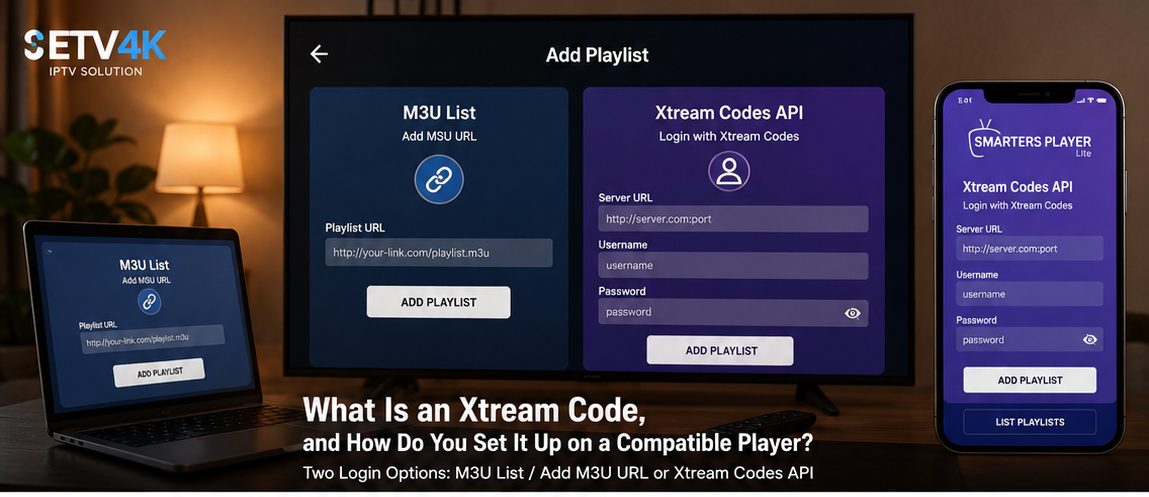
Short answer: An Xtream Code is a set of three private login fields—server URL, username and password—used by a compatible player to connect to an account. Players typically provide two setup methods: M3U List / Add M3U URL or Xtream Codes API. Choose the player first, keep the credentials private, and remember that one valid ETV Pro Xtream account can be saved on multiple compatible devices, but only one device may actively play at a time.
Key takeaways
- An Xtream Code is not a single password. It normally includes a server URL, username and password.
- Compatible players typically offer two setup methods: M3U List / Add M3U URL and Xtream Codes API.
- ETV Pro Xtream is intended for compatible-player workflows across Android, iOS, webOS, Smart TV and Windows environments, depending on the actual player and device.
- A valid account may be saved on multiple compatible devices during its valid period, but it supports one active playback at a time.
- The safest setup order is: choose the player, enter private credentials, test the exact device on the real network, then contact support with player and device details if needed.
What is an Xtream Code in a player setup?
An Xtream Code is the name many compatible players use for a three-field login method. The player asks for a server URL, username and password, then uses those fields to connect to the account.
A player may present two setup routes: M3U List / Add M3U URL, which uses a playlist URL or file, and Xtream Codes API, which uses the three separate account fields. These are the two terms used throughout this guide.
The account and the player are different things. ETV4K provides the ETV Pro Xtream account details, while the player is the application or interface the user chooses on a TV, phone, tablet or computer.
Popular compatible players (examples)
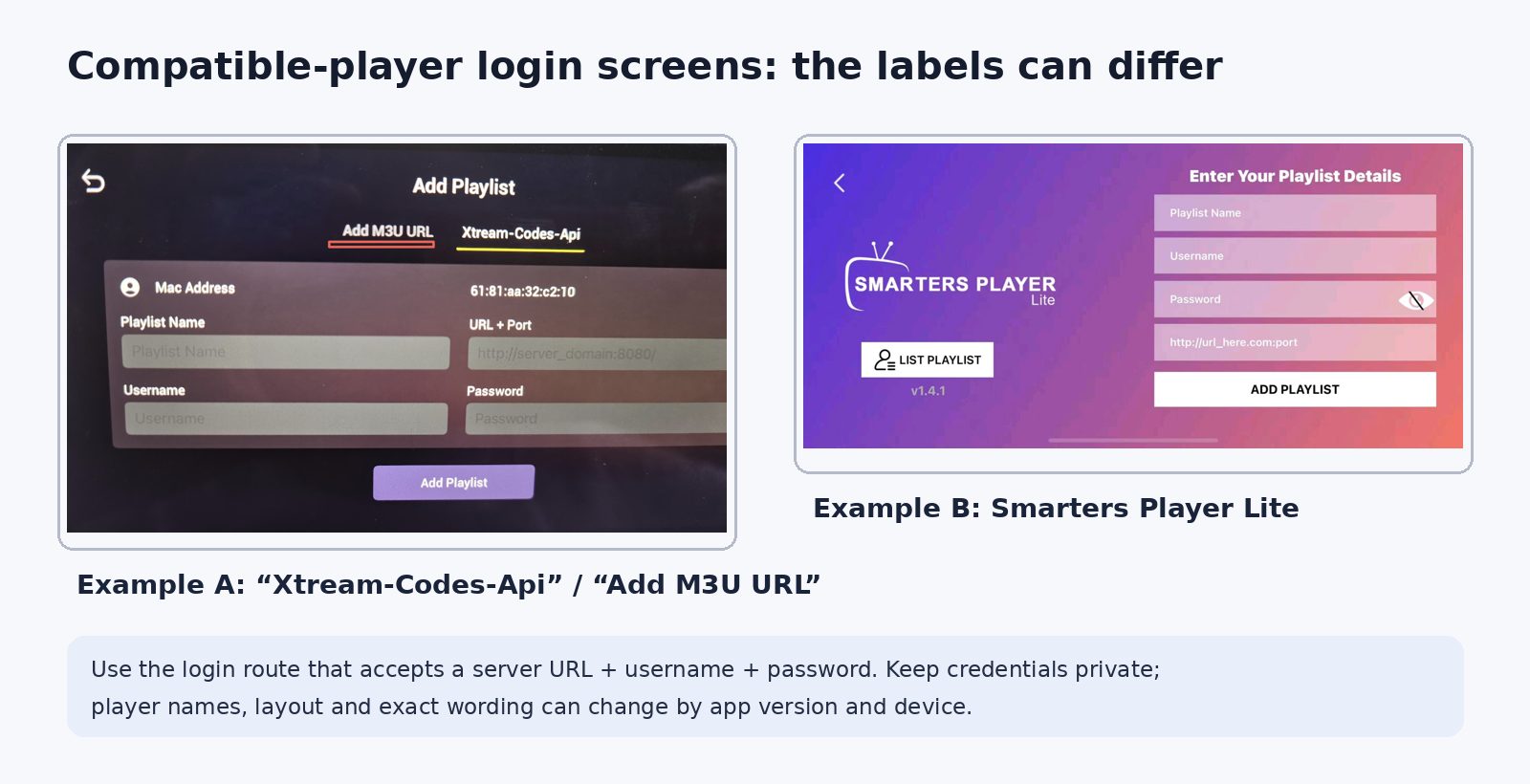
- TiviMate
- Smarters Player Lite / IPTV Smarters Pro
- XCIPTV Player
- OTT Navigator
- GSE Smart IPTV
- Perfect Player IPTV
Player availability varies by device and region. Always check the official store listing and the actual app version before relying on a specific setup.
What is the difference between M3U and Xtream Code?
Both methods are related ways to add an account in a compatible player, but they are not identical. The correct choice depends on what the player supports and which workflow the user prefers.
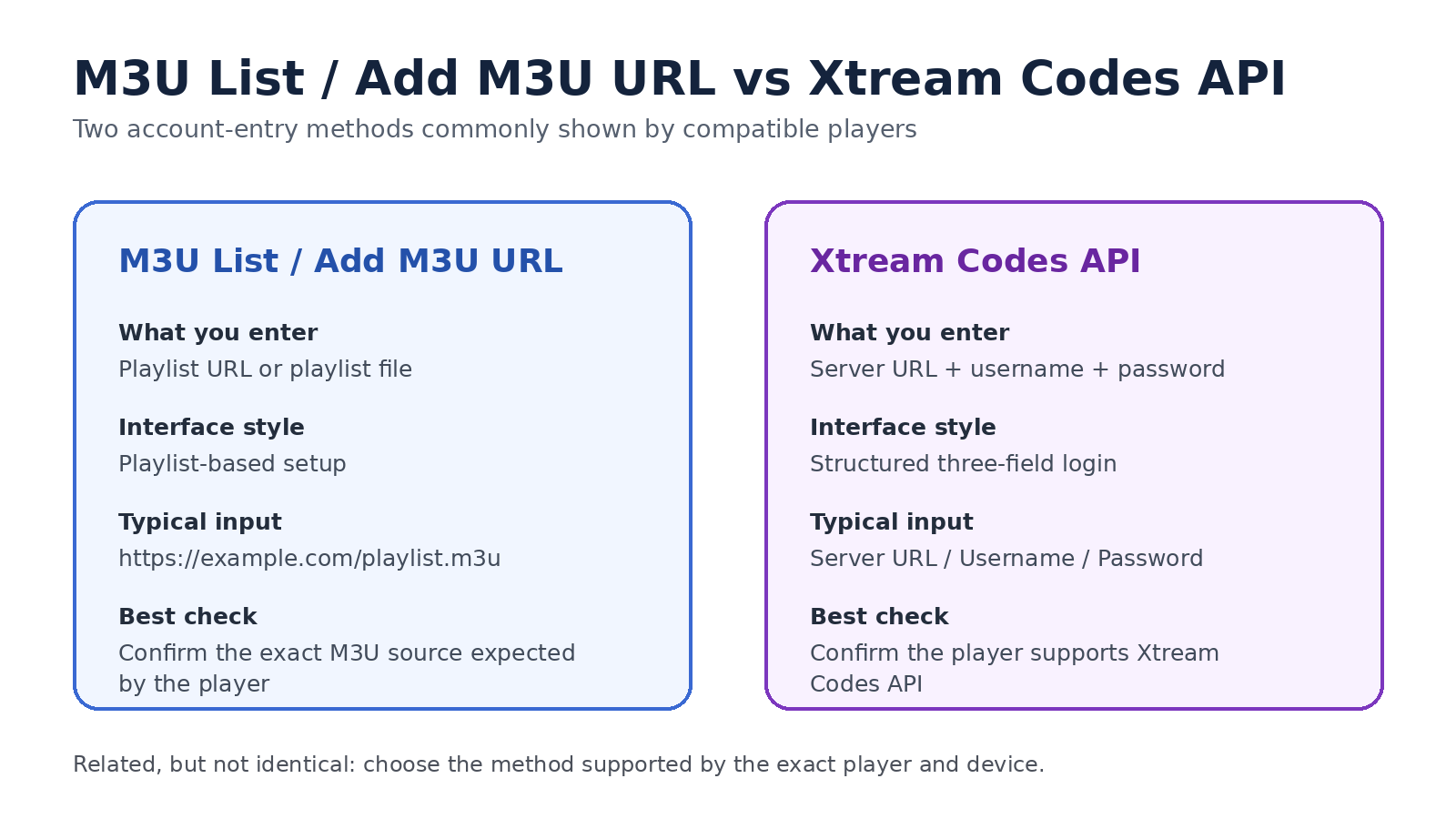
| Method | M3U List / Add M3U URL | Xtream Codes API |
|---|---|---|
| How it is entered | Playlist URL or file | Server URL + username + password |
| Interface style | Playlist-based setup | Structured three-field login |
| Typical use | Useful when a player expects an M3U source | Useful when the player provides Xtream Codes API login |
| What to check | Correct playlist URL/file and player support | Correct server URL, username, password and player support |
Which ETV4K product is designed for an Xtream Code setup?
In simple terms: ETV Pro is the official Android-app route; ETV Pro Xtream is the compatible-player route.
| Your setup need | ETV Pro | ETV Pro Xtream | What to confirm first |
|---|---|---|---|
| Preferred device path | Android devices using the official ETV Pro app | Compatible-player environments including Android, iOS, webOS, Smart TV and Windows | Operating system and exact player version |
| Account entry method | Official-app flow | Player login using M3U List / Add M3U URL or Xtream Codes API | The player supports the intended sign-in method |
| Best starting question | Do I want the official Android app? | Do I want flexibility with a compatible player? | Which device will be used first? |
| Before you decide | Review the ETV Pro product page | Review ETV Pro Xtream and test on the real player where available | Current terms, device and player compatibility |
What should you check before entering an Xtream Code?
Device and player fit
Start with the actual device, then confirm which compatible player is available and which login methods that version supports.
Private login details
Treat the server URL, username and password as private account credentials. Do not publish or screenshot them publicly.
The real network
Test on the household’s actual Wi-Fi or wired connection. A demo elsewhere does not guarantee identical behavior.
The player version
The same player name can behave differently across versions, operating systems and device models.
Can I use the same Xtream Code on more than one device?
Yes, with an important distinction. A valid ETV Pro Xtream account may be saved on multiple compatible devices during its valid period, but it supports one active playback at a time.
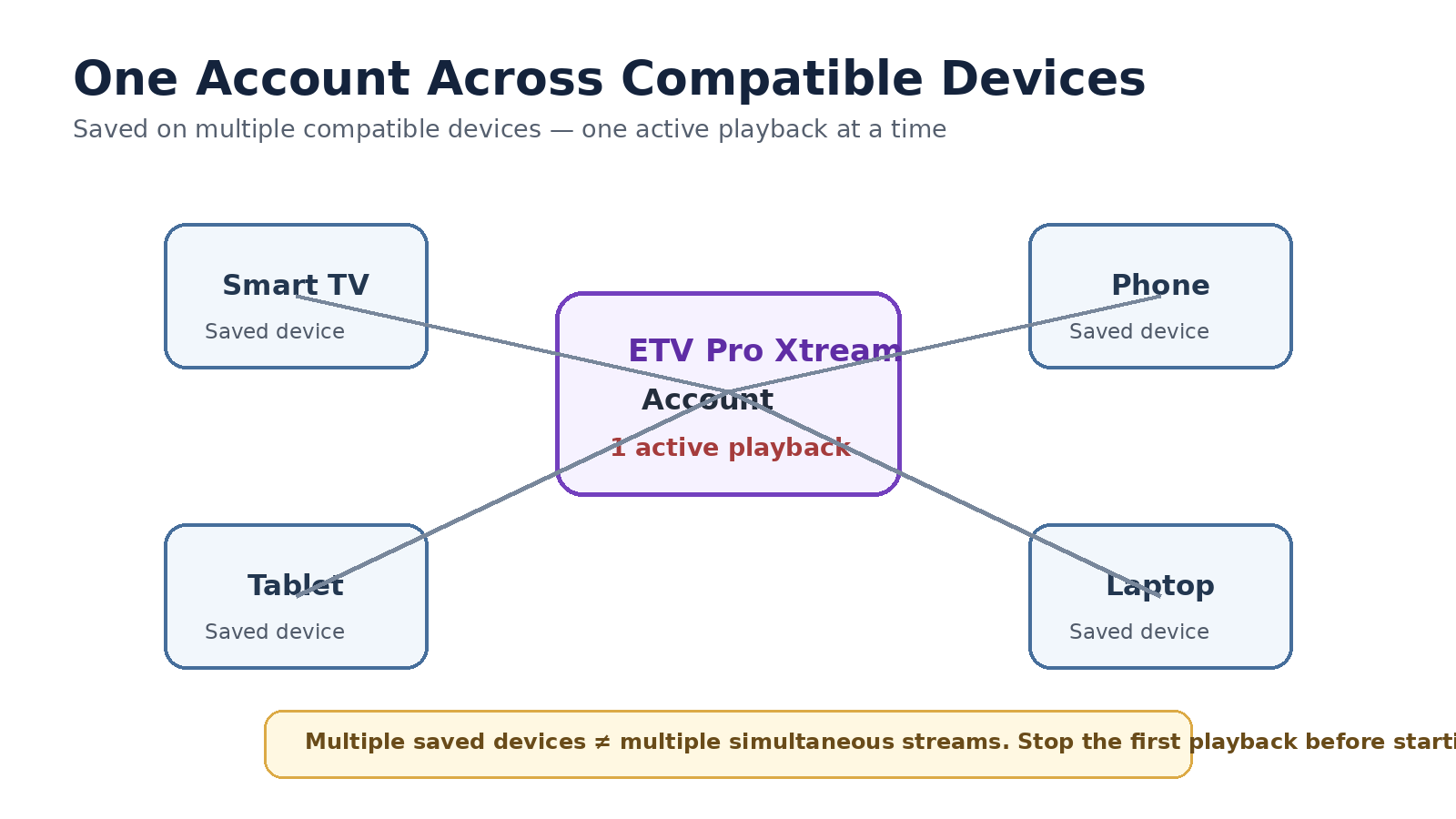
- Saved on multiple devices = convenient switching.
- One active playback = the simultaneous-use limit.
How do you set up an Xtream Code in a compatible player?
- Identify the exact device and player.
- Install the player from its official app store or official source.
- Choose one of the player’s two supported account-entry routes: M3U List / Add M3U URL or Xtream Codes API.
- If using Xtream Codes API, enter server URL, username and password exactly. If using M3U, enter the correct playlist URL or file.
- Test import, navigation and playback on the real device and network.
- If switching devices, stop the first playback before starting another.
- If support is needed, provide device model, operating system, player/version, setup step and the visible non-sensitive error message.
What should you do when an Xtream Code login fails?
- Re-enter the server URL, username and password carefully.
- Confirm you selected Xtream Codes API rather than the M3U route if you are using three-field credentials.
- Confirm the account is still within its valid period.
- Check whether another device is already actively playing.
- Test on the intended device and network.
- Record the player name/version and exact visible error, then contact support without sharing the private credentials publicly.
Questions people ask before setting up an Xtream Code
Is an Xtream Code a single password?
No. It normally uses server URL, username and password together.
Is M3U the same as Xtream Code?
No. M3U List / Add M3U URL and Xtream Codes API are two different setup methods in compatible players.
Can I save one ETV Pro Xtream account on multiple devices?
Yes. A valid account may be saved on multiple compatible devices during its valid period.
Can two devices play at the same time with one account?
No. One account supports one active playback at a time.
Which devices can use ETV Pro Xtream?
It is intended for compatible-player environments across Android, iOS, webOS, Smart TV and Windows, subject to player and device compatibility.
What should I do if the Xtream Code does not log in?
Check the three private fields, the selected login method, account validity, other active playback, device/network and player version before contacting support.